

In this guide, you’ll learn how to earn both redeemable points and elite-qualifying status points through online shopping with Alaska Airlines Atmos Rewards
Signing Up
Begin by signing up for Atmos Rewards Shopping using your Alaska Airlines Atmos Rewards account credentials. Both Alaska Airlines Atmos Rewards and Atmos Rewards Shopping are free to join.
How to Earn
The Atmos Rewards Shopping portal (powered by Cartera) features more than 1,100 merchants. You’ll earn redeemable points on eligible purchases with participating retailers. For example, spending $100 (before tax and shipping) at Lululemon at a rate of 2 points per dollar earns 200 redeemable Atmos Rewards points.
These purchases can also count toward status points, though not on a dollar-for-dollar basis. Atmos Rewards awards 1,000 status points for every 3,000 redeemable points earned through non-flight partners, including the shopping portal. That means your Lululemon purchase contributes toward this threshold.
If you make that same purchase with a co-branded Alaska Airlines credit card, you’ll earn even more. Not only will you pick up extra redeemable Atmos Rewards points, but you’ll also earn status points, with no caps. These are calculated separately based on which card you pay with:
- Atmos™ Rewards Summit Visa Infinite® Credit Card: Earn 1 status point for every $2 spent.
- Atmos™ Rewards Ascent Visa Signature® Credit Card and Atmos™ Rewards Visa Signature® Business Card: Earn 1 status point for every $3 spent.
To put it all together, here’s what you’d earn on a $100 Lululemon purchase (2 points per dollar through the Atmos Rewards Shopping portal) when paying with the Atmos™ Rewards Summit Visa Infinite® Credit Card:
- Shopping portal: 200 redeemable points + 200 points toward the 3,000-point threshold for 1,000 status points
- Credit card: 100 redeemable points (1 point per dollar) + 50 status points (1 per $2 spent)
- Total: 300 redeemable points, 50 status points, and 200 points toward the bonus threshold
Product Search
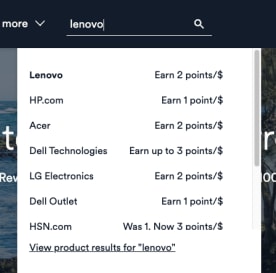
You can browse your favorite stores and brands on the Atmos Rewards Shopping portal, or you can search directly for products. For example, if you’re shopping for a cordless drill or a vacuum cleaner, type the product into the search bar and view the product results. The portal will show you which merchants sell that item along with the earning rate for each.
Best Practices
The Atmos Shopping portal has been known to be very sensitive to “last-touch” during shopping. This means it’s important to follow these best practices outlined in the FAQ to decrease the chances of issues.
Frequently Asked Questions
Points are considered posted when they appear in your Alaska Airlines account. Unless otherwise noted, the activity date will be the date of the transaction, regardless of when it is posted.
By program:
- Atmos Shopping
- It will depend on the terms. Some post in a day, others in a week, or even after a 60-day period. With some merchants, you must wait until the order is picked up or delivered. Regardless, you will have to give at least 15 days. If it doesn’t post within 15 days, you submit a request for credit. Cartera will research the request and it may take 6-8 weeks to resolve (up to 6 months in extreme cases).
- Merchants typically don’t report earnings back to Cartera until the purchase has shipped, is picked up, or is completed. With some merchants, earnings may be split if items are shipped at different times.
- Information found under “Recent transactions” and “Recent store visits” should not be used to determine whether an activity has been correctly tracked or will post
- Days to Post information is available on some merchant pages (often is not reflective of actual time to post)
- Bonus miles via Atmos Shopping: bonus miles from promotions can take up to 10 weeks to post
- Hotels via Atmos Shopping: If you booked a hotel through Atmos Shopping, the booking date will be the transaction date.
Users have reported successful tracking and posting of points when using the Atmos Shopping extension in Chrome on a laptop/desktop.
🎥 For larger point purchases, screen recording your checkout process is recommended in case Cartera says the purchase was not eligible:
- 🍎 Take screen recordings on Mac
- 🖥️ How to Screen Record in Windows 10 or Windows 11
- 📱 Record the screen on your iPhone, iPad, or iPod touch
- 📱 Record and capture your Galaxy phone or tablet’s screen
Then, carefully follow these steps:
- Disable ad-blockers and shopping browser extensions (e.g. Rakuten, Honey, CapitalOne Shopping, etc.) or shopping apps on your phone
- Log in to Atmos Shopping
- Open the merchant through Atmos Shopping
- Click through the offer on Atmos Shopping for the merchant
- Add all items to the cart/nearly complete the purchase process
- If applicable, log in to your account at the merchant
- Check your Recent store visits on Atmos Shopping activity after the initial visit to confirm functionality
- Click through again on Atmos Shopping for the merchant
- If the popup does not appear, try to open the Atmos Shopping extension (this may help to refresh the tracking)
- Complete the checkout/purchase process
- Users may or may not see a banner at the end of the transaction. If it appears, take a screenshot of the entire page
It may take up 24 hours for the transaction to appear in your Recent store visits on Atmos Shopping activity (it’s possible it does not appear). Use My Earnings to track your purchases.
If there is no activity under “Recent store visits” or “Recent transactions,” you can submit a request after 15 days for missing miles. Submit the recording of the transaction along with your receipt.